# Expense with Ledger

### **How to raise expense request** <a href="#how-to-raise-expense-request" id="how-to-raise-expense-request"></a>

Go to **Expense App.**

<figure><img src="https://160083056-files.gitbook.io/~/files/v0/b/gitbook-x-prod.appspot.com/o/spaces%2FmK2RCoJJtarg5gUVoIgX%2Fuploads%2FAKLNQi9f4r31y06saZtM%2Fimage.png?alt=media&#x26;token=e565ff55-ebc8-424b-a0a5-084ed665aaef" alt=""><figcaption></figcaption></figure>

Go to **Expense.**

<figure><img src="https://160083056-files.gitbook.io/~/files/v0/b/gitbook-x-prod.appspot.com/o/spaces%2FmK2RCoJJtarg5gUVoIgX%2Fuploads%2FOpESax0nxeNTP7WAdhSn%2Fimage.png?alt=media&#x26;token=91a0e214-5928-4998-b0b9-b9f5cb96440e" alt=""><figcaption></figcaption></figure>

Click on **+Expense**.

<figure><img src="https://160083056-files.gitbook.io/~/files/v0/b/gitbook-x-prod.appspot.com/o/spaces%2FmK2RCoJJtarg5gUVoIgX%2Fuploads%2FXCBddbLb1G5KshlrVYbs%2Fimage.png?alt=media&#x26;token=c6d84eca-038b-43f1-b8dc-302a4a97ab3b" alt=""><figcaption></figcaption></figure>

Fill up the required details and click on Save.

<figure><img src="https://160083056-files.gitbook.io/~/files/v0/b/gitbook-x-prod.appspot.com/o/spaces%2FmK2RCoJJtarg5gUVoIgX%2Fuploads%2FOgszP1tnnWXIhsvnUxyz%2Fimage.png?alt=media&#x26;token=668b3c0c-ee83-405c-b414-ebee82c82a87" alt=""><figcaption></figcaption></figure>

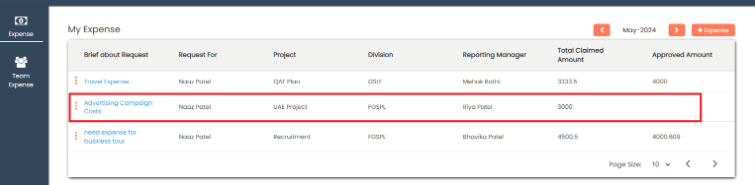
Employee can view their own created expense request in **My Expense**.

<figure><img src="https://160083056-files.gitbook.io/~/files/v0/b/gitbook-x-prod.appspot.com/o/spaces%2FmK2RCoJJtarg5gUVoIgX%2Fuploads%2Fa22YGn8gg7HdJxlUNBuJ%2Fimage.png?alt=media&#x26;token=2664d840-88b9-4caf-b123-215c24ae99bc" alt=""><figcaption></figcaption></figure>

**How to approve expense request**

After creating the expense request, a notification is sent to the account team, and the request is assigned to them.

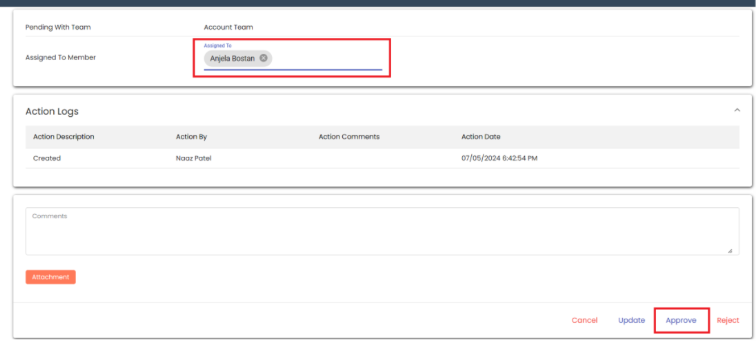
To proceed, navigate to **Service Actions** >> Pending Requests, then assign the request to yourself, add the approved amount, and click **Approved.**

<figure><img src="https://160083056-files.gitbook.io/~/files/v0/b/gitbook-x-prod.appspot.com/o/spaces%2FmK2RCoJJtarg5gUVoIgX%2Fuploads%2FQHDrp8qUqUH663mJxGbY%2Fimage.png?alt=media&#x26;token=6774ab68-baf9-4dc5-acf2-e3b2e8f05233" alt=""><figcaption></figcaption></figure>

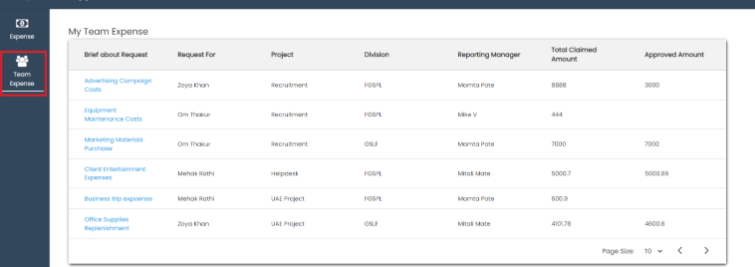
After approval, the request is assigned to the **employee's manager**, who receives an email notification. The manager can then view all requests in **Team Expense** by clicking on the respective menu.

<figure><img src="https://160083056-files.gitbook.io/~/files/v0/b/gitbook-x-prod.appspot.com/o/spaces%2FmK2RCoJJtarg5gUVoIgX%2Fuploads%2FYJliBwL8nreTQ2xcJjAi%2Fimage.png?alt=media&#x26;token=81aa094d-6018-49f2-988b-6671321044ac" alt=""><figcaption></figcaption></figure>

The manager can approve requests directly from **Team Expense** by clicking on the brief description of the request title and then click on **Approved**.

<figure><img src="https://160083056-files.gitbook.io/~/files/v0/b/gitbook-x-prod.appspot.com/o/spaces%2FmK2RCoJJtarg5gUVoIgX%2Fuploads%2FopIT8E3ynmk3U2ynDZOZ%2Fimage.png?alt=media&#x26;token=6a46a4e6-1ed6-4a5f-85fd-8c2aa85fe7d8" alt=""><figcaption></figcaption></figure>

After the manager approves the request, it is then assigned to the Account Team, and a notification is sent to them. Once the Account Team approves the request, it is then assigned to the Payment Team, with a notification sent accordingly.

The Payment Team can then approve the request from the service action interface. Upon approval, the GSLF/FGSLF is updated in the **employee ledger balance**.

<figure><img src="https://160083056-files.gitbook.io/~/files/v0/b/gitbook-x-prod.appspot.com/o/spaces%2FmK2RCoJJtarg5gUVoIgX%2Fuploads%2FQfPyHqC3VC6CHJBXIncR%2Fimage.png?alt=media&#x26;token=b66ba29e-59aa-468c-8108-021cd1618fee" alt=""><figcaption></figcaption></figure>

Last Updated 26 December 2026