# Add candidates in the tracker

Add candidates in the tracker in different ways

1. Add a candidate directly from the tracker
2. Import a candidate directly from the tracker
3. Add candidate through vendor
4. Add candidate from the existing database
5. Add candidate from the careers website

### Add a candidate directly from the tracker <a href="#add-a-candidate-directly-from-the-tracker" id="add-a-candidate-directly-from-the-tracker"></a>

Go to **Job Posting** and click on job title.

<figure><img src="/files/YLOL6DyMlvlWlm3zoqCE" alt=""><figcaption></figcaption></figure>

Go to **More** option and click on **Add**.

<figure><img src="/files/HxkZB6jjfI0mD83K0WnN" alt=""><figcaption></figcaption></figure>

Details will be displayed on the form according to roles. Please enter the details on the 'Add Candidate' page and click **Save**.

<figure><img src="/files/tGNbyWBeBvJe5dv6OvhW" alt=""><figcaption></figcaption></figure>

The added candidate will appear at the top of the list in the tracker.

<figure><img src="/files/xaOvY7wI7KgG1o0PloWh" alt=""><figcaption></figcaption></figure>

### Import a candidate directly from the tracker <a href="#import-a-candidate-directly-from-the-tracker" id="import-a-candidate-directly-from-the-tracker"></a>

Go to **More** option and click on **Import.**

<figure><img src="/files/GuGpcunPdLoonMVs2lwM" alt=""><figcaption></figcaption></figure>

Download the template and open the downloaded file.

<figure><img src="/files/iMrP4vApyYnkrdh1o7FL" alt=""><figcaption></figcaption></figure>

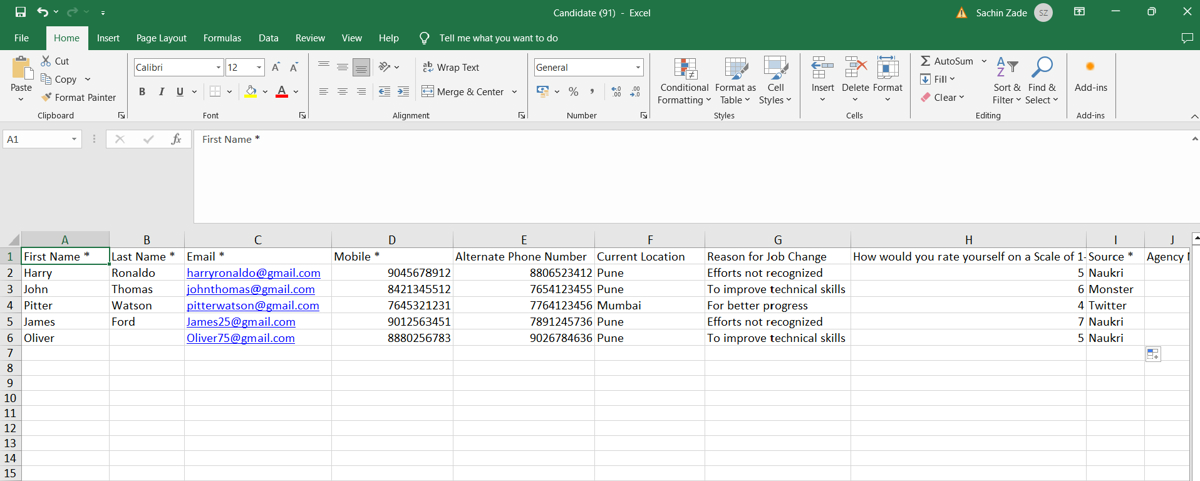
Fill in the candidate data in the spreadsheet/file.

<figure><img src="/files/FxAQNyHBkwnty2ACUjFH" alt=""><figcaption></figcaption></figure>

Click on **Upload Bulk Data** to upload the file.

<figure><img src="/files/wm8FUJehN8q1htJtZVXN" alt=""><figcaption></figcaption></figure>

If the candidate has already been added to the tracker, then the candidate will not be imported again.

### Add candidate through vendor <a href="#add-candidate-through-vendor" id="add-candidate-through-vendor"></a>

The vendor can log in to the vendor portal using its login ID and password.

<figure><img src="/files/PSB2dd53SHtLT9bRTy5I" alt="" width="461"><figcaption></figcaption></figure>

The vendor is able to see all **current opening**.

<figure><img src="/files/xoRUhqCCRlJxdXnKrA5l" alt=""><figcaption></figcaption></figure>

Go to the job details page to upload a candidate for a particular job post.

<figure><img src="/files/D7qGrRaclu9etEolqFfv" alt=""><figcaption></figcaption></figure>

On the job details page, the vendor is able to see all the job details.

<figure><img src="/files/iIGffQPpBYWKogAvCR2s" alt=""><figcaption></figcaption></figure>

To upload a candidate, click on **+Candidate**.

<figure><img src="/files/Z7RyMj2pSrQueuV0z3MG" alt=""><figcaption></figcaption></figure>

Details will be displayed on the form according to job roles. Please enter the details on the 'Candidate' page and click **Save**.

<figure><img src="/files/Nx6XvL12jxge7sYVHl7n" alt=""><figcaption></figcaption></figure>

The uploaded candidate is shown in the list.

<figure><img src="/files/hML80uyyMDOYNBxGASZq" alt=""><figcaption></figcaption></figure>

Once the vendor uploads a candidate, the candidate will be displayed in the job tracker for that specific job. The status will be "**Screening pending**," and the source will be listed as "**Agency**".

<figure><img src="/files/isKiEHAewuiz8s42qKxj" alt=""><figcaption></figcaption></figure>

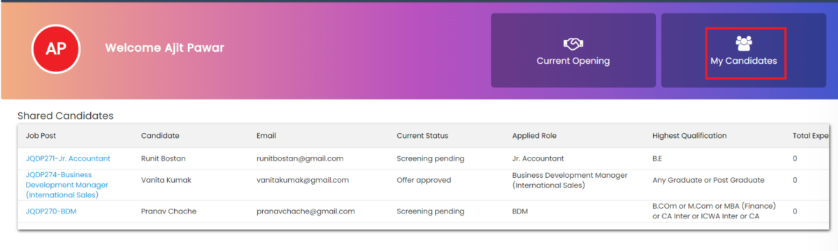
All candidates uploaded by the vendor will be shown in '**My Candidates**”.

<figure><img src="/files/wVNgFaaOi4iEuhykmVS0" alt=""><figcaption></figcaption></figure>

### Add candidate from the existing database <a href="#add-candidate-from-the-existing-database" id="add-candidate-from-the-existing-database"></a>

Click on **shortlist candidate.**

<figure><img src="/files/8KYD13VxB59geWJl7hLP" alt=""><figcaption></figcaption></figure>

Click on shortlist then candidate added in the tracker.

<figure><img src="/files/XFPlSuF6uCS6aZPv6MEa" alt=""><figcaption></figcaption></figure>

### Add candidate from the careers website <a href="#add-candidate-from-the-careers-website" id="add-candidate-from-the-careers-website"></a>

When candidate apply for job application from career portal applied candidates added in candidate list.

Enter URL <https://demo.aiflo.app/carrer> and **career portal** will open.

<figure><img src="/files/qIPtaArycH2XezYsj2w7" alt=""><figcaption></figcaption></figure>

Go to job details page by clicking on **job title.**

<figure><img src="/files/fysTe0CP0Axbo75qnBLK" alt=""><figcaption></figcaption></figure>

Click on '**Apply for this Job'** button.

<figure><img src="/files/poAUFYplDQxPjgnRN9tI" alt=""><figcaption></figcaption></figure>

Enter all details of the candidate and click on the **Save**.

<figure><img src="/files/BBGzDz2u472XIsYufiUD" alt=""><figcaption></figcaption></figure>

When a candidate applies, they appear in the 'Applied' tab. Clicking on **shortlist** adds the candidate to the tracker.

<figure><img src="/files/n7Y2W2ynzfzh07EVYPZb" alt=""><figcaption></figcaption></figure>

Candidates who have been added are displayed in the tracker with a "**screening pending**" status, and the source is identified as "**Career Portal**".

<figure><img src="/files/zHiw8CN3H5jkH9KI8Oqj" alt=""><figcaption></figcaption></figure>

Last Updated 17 December 2025


---

# Agent Instructions: Querying This Documentation

If you need additional information that is not directly available in this page, you can query the documentation dynamically by asking a question.

Perform an HTTP GET request on the current page URL with the `ask` query parameter:

```
GET https://docs.aiflo.app/recruitment-and-ats/job-tracker/add-candidates-in-the-tracker.md?ask=<question>
```

The question should be specific, self-contained, and written in natural language.
The response will contain a direct answer to the question and relevant excerpts and sources from the documentation.

Use this mechanism when the answer is not explicitly present in the current page, you need clarification or additional context, or you want to retrieve related documentation sections.