# Integrate Timesheet with Attendance

### How fill up Timesheet

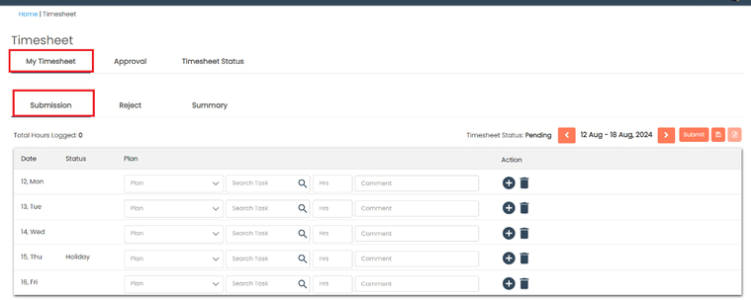
My Timesheet >> Go to **Submission** for fill up timesheet.

<figure><img src="/files/GBviN3DBCjvi2htMADGR" alt=""><figcaption></figcaption></figure>

Click on **Plan** Dropdown.

<figure><img src="/files/n24xpoypLAzPF1TPrD3k" alt=""><figcaption></figcaption></figure>

Select **Plan** from dropdown List.

<figure><img src="/files/aJpf2y3MqG2KPN4sSJ9O" alt=""><figcaption></figcaption></figure>

Click on search Button to select the task.

<figure><img src="/files/XIWLrmhj6ngBG0UfTjgy" alt=""><figcaption></figcaption></figure>

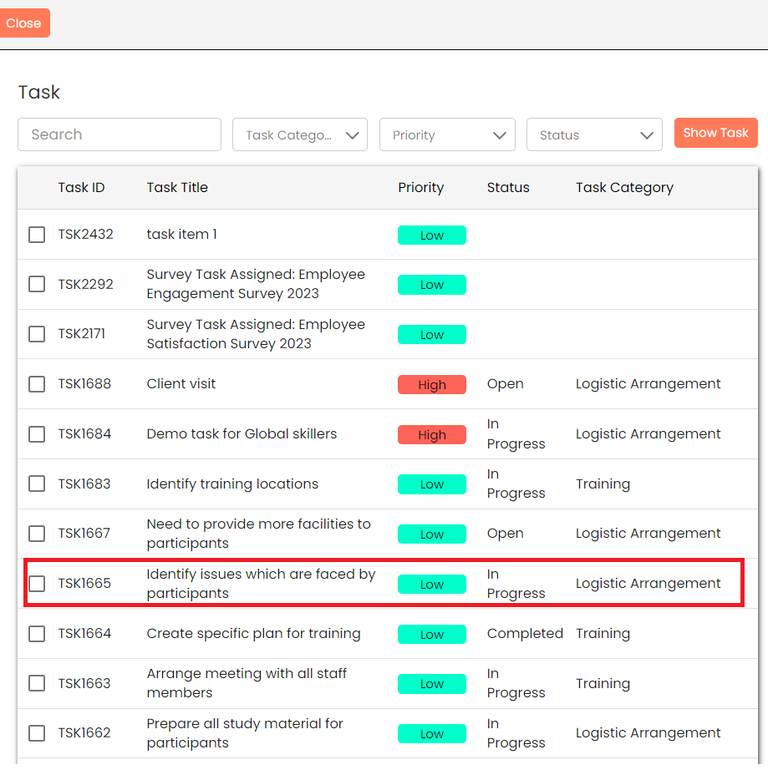
Click on Checkbox to select task.

<figure><img src="/files/Dtt4N9zUm6iSUjPcKDGJ" alt=""><figcaption></figcaption></figure>

Add **Hours** in hours field.

<figure><img src="/files/sGROlyx5trQVTextqTmU" alt=""><figcaption></figcaption></figure>

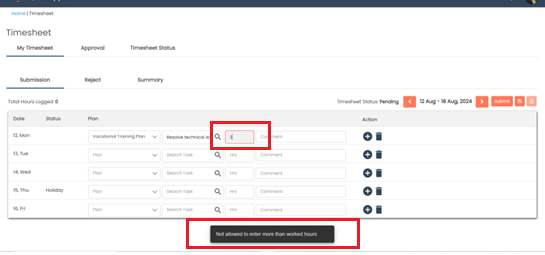
If you add hours more than working hours then system should not allow to submit timesheet.

<figure><img src="/files/yVbM4tsYWWTOpA5axTxE" alt=""><figcaption></figcaption></figure>

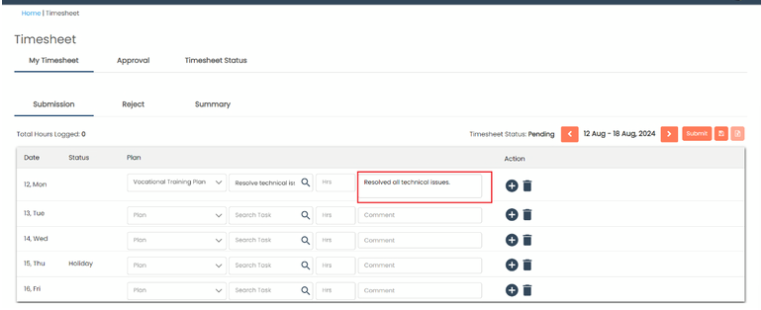
Add the comment in comment box.

<figure><img src="/files/bblr8VVyvMLCma121rya" alt=""><figcaption></figcaption></figure>

Click on **+ Button** to add the Sub row.

<figure><img src="/files/BmOfDU7xRe08ks15oifD" alt=""><figcaption></figcaption></figure>

Check row is added at the bottom of main row.

<figure><img src="/files/KO6WJn4KS33INXGWp6J5" alt=""><figcaption></figcaption></figure>

Click on **Delete** icon to delete Record on that row.

<figure><img src="/files/5zhzfWhnyxLqCWU5JV3K" alt=""><figcaption></figcaption></figure>

Click on sub row Delete icon to **Delete** Sub row.

<figure><img src="/files/NXfGCKLyiB8dZSU7DxFC" alt=""><figcaption></figcaption></figure>

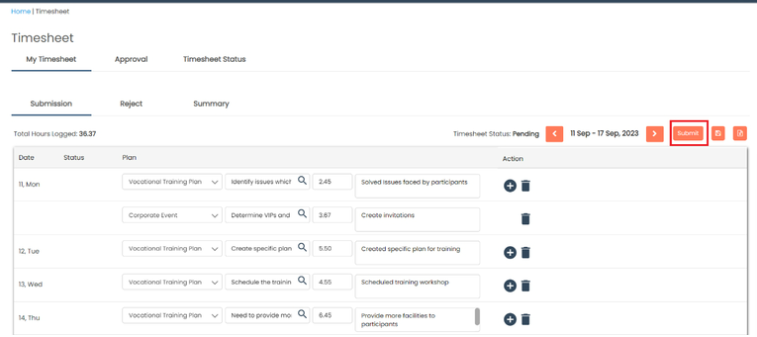
Click on **Submit** button to submit this Timesheet.

<figure><img src="/files/C3T4lE4KyCMShB7MY9y2" alt=""><figcaption></figcaption></figure>

Click on **Export** Button to export this file.

<figure><img src="/files/nZgoHix3oHgi58ioZt0z" alt=""><figcaption></figcaption></figure>

When filling out the timesheet, it will display the total logged hours for that week.
<figure><img src="/files/O9IBWzxIq9z40Wxs6S33" alt=""><figcaption></figcaption></figure>


---

# Agent Instructions: Querying This Documentation

If you need additional information that is not directly available in this page, you can query the documentation dynamically by asking a question.

Perform an HTTP GET request on the current page URL with the `ask` query parameter:

```
GET https://docs.aiflo.app/timesheet/integrate-timesheet-with-attendance.md?ask=<question>
```

The question should be specific, self-contained, and written in natural language.
The response will contain a direct answer to the question and relevant excerpts and sources from the documentation.

Use this mechanism when the answer is not explicitly present in the current page, you need clarification or additional context, or you want to retrieve related documentation sections.