> For the complete documentation index, see [llms.txt](https://docs.aiflo.app/llms.txt). Markdown versions of documentation pages are available by appending `.md` to page URLs; this page is available as [Markdown](https://docs.aiflo.app/ai-stages/ai-decision-yes-no.md).
# AI Decision Yes/No
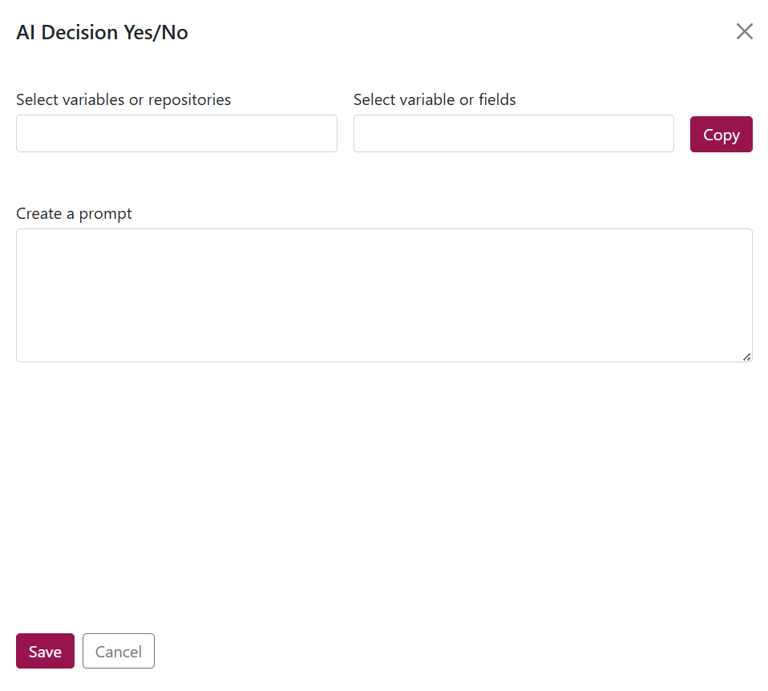
The **AI Decision Yes/No** stage uses AI to evaluate input data based on a custom prompt and returns a simple **"Yes" or "No"**. The output is stored as **Option-1** for "Yes" and **Option-2** for "No", allowing workflows to branch automatically based on the AI's decision. This stage is ideal for eligibility checks, approvals, or any binary decision-making scenario.
### AI Decision Yes/No
**Select variable or repositories:**
The dropdown displays the **Variable** values.
**Select variable or fields:**
1. It shows all variables from previous stages in the dropdown.
2. If no variables are available from previous stages, it displays 'No variables found’.
3. When a variable value selected in the first dropdown, the second dropdown dynamically shows the list of available variables from previous stages.
**Create a prompt:**
1. “Create a prompt” field is mandatory, the validation message displays as 'Prompt is required' when the prompt field is left empty.
2. When copying a variable value into the prompt, use the format:
${Variable:variableName}
1. After saving the form, when reopening the stage, the prompt appears exactly as saved with no formatting changes or data loss.
**Expected Behavior: AI Decision Yes/No Output Storage**
* The output of the AI Decision Yes/No stage is stored in:
* **Option-1** if the AI returns **"Yes"**
* **Option-2** if the AI returns **"No"**
**Example**
Let’s say the AI prompt is:
*"Is the candidate eligible for the interview based on experience and skills?"*
* If the AI evaluates the input and returns **"Yes"**, then the output is saved in: → **Option-1**
* If the AI returns **"No"**, then the output is saved in: → **Option-2**
These outputs can then be used to branch the workflow accordingly (e.g., proceed to scheduling or rejection stage).
### **AI Decision Yes/No Under For Each Stage**
**Select variable or repositories:**
1. The dropdown list displays the Variable and Repository name selected in the 'For Each' stage.
**Select variable or fields:**
1. When a variable value selected in the first dropdown, the second dropdown dynamically displays the list of available variables from previous stages.
2. When a repository value selected in the first dropdown, the second dropdown displays all fields of the selected repository.
3. If no variables are available from previous stages, the second dropdown displays the message: "No variables found."
**Create a prompt:**
1. “Create a prompt” field is mandatory, the validation message displays as 'Prompt is required' when the prompt field is left empty.
2. Copied variable value is pasted into the prompt in following format:
**For Variables**: Format: ${Variable:variableName} Example: ${Variable:eligibilityStatus
**For Repository Fields**: Format: ${RepositoryName:FieldName} Example: ${Candidate\_Details:Experience} - Use the internal name of the repository and the field when generating the token.
1. Upon saving, the system stores and shows the prompt **exactly as entered** when reopened — without data loss or format alteration.
**Expected Behaviour: AI Decision Yes/No Output Storage**
* When the **AI Decision Yes/No** stage is placed **within a For Each loop**, the AI evaluation is **performed individually for each record** in the selected repository.
* Output storage for each iteration:
* Option-1 → if the AI returns "Yes" for that specific record
* Option-2 → if the AI returns "No" for that specific record
**Example Scenario**
For Each Repository: Candidate\_List Prompt: *"Is the candidate eligible for the interview based on experience and skills?"*
For each candidate in Candidate\_List, the AI evaluates the prompt:
* If the AI returns "Yes" for a candidate → store output in Option-1
* If the AI returns "No" for a candidate → store output in Option-2
### **AI Decision Yes/No Under Condition Stage**
**Select variable or repositories:**
1. The dropdown shows **Variable** values.
**Select variable or fields:**
1. Displays **all available variables** from previous stages.
2. If no variables are available from previous stages, it displays 'No variables found’.
3. When a variable value selected in the first dropdown, the second dropdown dynamically shows the list of available variables from previous stages.
**Create a prompt:**
1. “Create a prompt” field is mandatory, the validation message displays as 'Prompt is required' when the prompt field is left empty.
2. Copied variable value must be pasted into the prompt in following format: ${Variable:variableName}
3. After saving the form, when the stage is reopened, the entered prompt appears exactly as saved without any formatting changes or data loss.
**Expected Behaviour: AI Decision Yes/No Output Storage**
**Scenario:**
When the AI Decision Yes/No stage is used under a Condition stage, and the condition checks a specific variable value (e.g. Candidate Score), the AI will evaluate the prompt only if the condition is true.
Condition Logic: If ${Variable:CandidateScore} == 50
* Only when this condition is satisfied, the workflow proceeds to the next stage — AI Decision Yes/No.
AI Decision – Yes/No Stage: Prompt: "Is the candidate eligible for the interview based on skills?"
**Output Storage Logic:**
* Option-1 → if AI returns "Yes"
* Option-2 → if AI returns "No"
**Example Flow:**
1. Condition Check:
* CandidateScore = 50 → ✅ *Condition True*
2. AI Evaluation (Yes/No):
* Prompt: *"Is the candidate eligible for the interview based on skills?"*
3. AI Output Storage:
* If response is "Yes" → proceed to Option-1: *Schedule Interview*
* If response is "No" → proceed to Option-2: *Reject Candidate*
**Usage Outcome:**
This combination enables conditional AI branching:
* Ensures the decision logic only runs for specific cases (e.g., only if candidate has an exact score),
* Then uses AI to smartly route based on qualitative input like skills.