> For the complete documentation index, see [llms.txt](https://docs.aiflo.app/llms.txt). Markdown versions of documentation pages are available by appending `.md` to page URLs; this page is available as [Markdown](https://docs.aiflo.app/ai-stages/ai-extract-detail.md).
# AI Extract Detail
The Extract Detail stage enables workflows to intelligently analyze and extract structured data—such as text, number, decimal, Boolean, or date—from unstructured or semi-structured sources like previous output variables. It helps capture essential data points, key facts, and critical information, storing them in variables that can be reused in later stages of the workflow for efficient processing and automation.
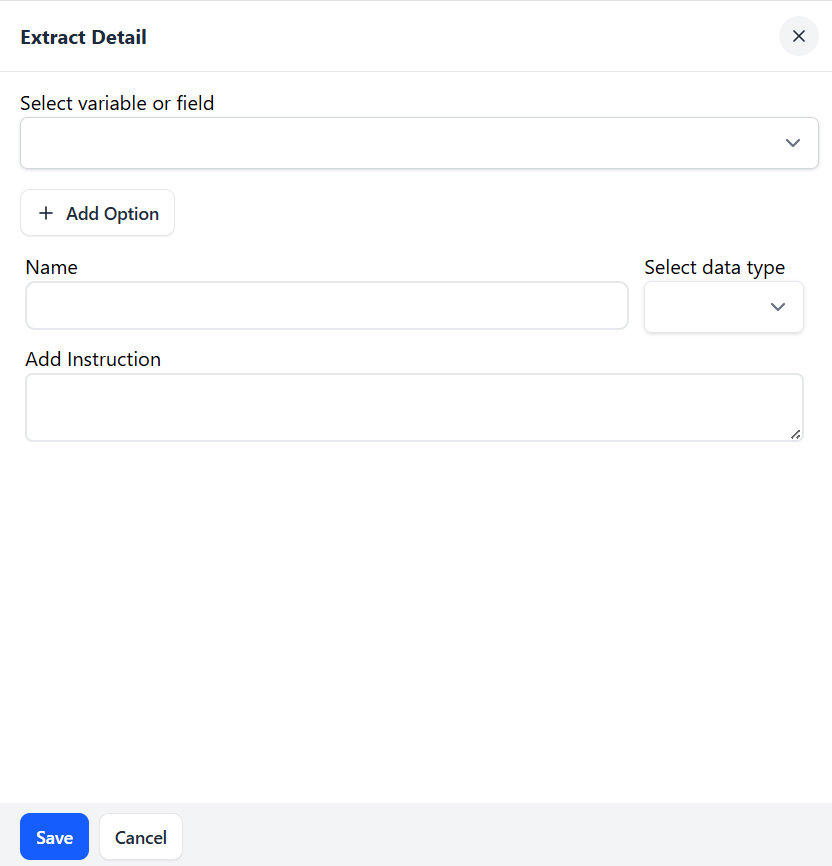 ### **AI Extract Detail**
**Select variable or fields:**
1. The dropdown displays all variable names from previous stages.
2. If no variables are available from previous stages, it shows 'No variables found’.
3. Choose the input variable from which you want to extract data (e.g. Variable:Candidate\_Summary)
4. This is the source text that the AI will analyze and extract.
**Add Fields to Extract**
Click on ➕ Add Option to define what information you want to extract. For each field:
**a. Name**
* Provide a label for the field to extract (e.g., Candidate Name, Total Experience, Joining Date, Is Available, Location).
**b. Select Data Type**
* Choose one of the following data types:
* String – for names, titles, general text
* Number – for integers like years of experience
* Decimal – for values like salaries, ratings
* Boolean – for true/false type answers (e.g., “Is the candidate available immediately?”)
* Date – for values like DOB, application date
**c. Add Instruction**
* Describe clearly what to extract from the input.
Examples:
* * *Extract the full name of the applicant.*
* *Extract total years of experience.*
* *Extract the offered salary as a decimal value.*
* *Extract whether the candidate is currently available (Yes/No).*
* *Extract the date when the candidate can join.*
**Example Setup**
| **Name** | **Data Type** | **Instruction** |
| --------------- | ------------- | --------------------------------------- |
| Full Name | String | Extract the full name of the candidate. |
| Experience | Number | Extract total years of experience. |
| Salary Expected | Decimal | Extract expected salary in INR. |
| Immediate Join | Boolean | Is the candidate available immediately? |
| DOB | Date | Extract date of birth of the candidate. |
**Output store:**
* In the Extract Detail stage, the output is stored in record or records data type variables,
* If your Extract Detail stage allows you to define multiple fields (e.g., Name, Email, Experience), and these are returned as part of a single structured object (like a record), then yes — the output is effectively of record type.
* If the stage processes a list of inputs (e.g., resumes), and extracts details from each, then it could produce an array of records → records type.
**Use Case Examples**
* **Resume Screening**
Extract: Name, Experience, Skills, Current Location, Expected Salary
* **Support Ticket Triage**
Extract: Issue Type, Product, Date of Issue, Urgency Level
* **Sales Lead Capture**
Extract: Lead Name, Company, Email, Budget, Interested Service
### **AI Extract-Detail Under For Each Stage**
When used inside a For Each stage, the Extract Detail stage helps process each item in a list (e.g., resumes or form responses) by extracting structured data—such as text, number, decimal, boolean, or date—from each item individually.
This is especially useful when handling bulk records or looping through repository entries or array variables.
**How It Works**
* The For Each stage loops over a list of items (records or array).
* For each item, the Extract Detail stage analyzes the selected input variable or fields (typically a field from the current record in the loop).
* It extracts defined data points and stores them in variables for further actions like filtering, scoring, or storing in another repository.
**Configuration Steps**
**1. For Each Setup**
* Repository selected: e.g., Candidate Tracker
* Set condition: Highest Education is equal to BE
**2. Extract Detail Configuration Inside For Each**
**a. Select Variable or Fields**
* The dropdown list displays the Variable and Repository fields selected in the 'For Each' stage.
* Choose the input variable or fields that contains the data you want to analyze per item.
**b. Add Fields to Extract**
Click on ➕ Add Option to configure the fields to extract for each item in the loop.
| **Parameter** | **Description** |
| ------------- | ------------------------------------------------------------------------- |
| Name | Name for the extracted field (e.g., Candidate Name, Experience) |
| Data Type | Select from: String, Number, Decimal, Boolean, or Date |
| Instruction | Give a clear instruction to the AI on what to extract from the input text |
*These extracted values are scoped per loop iteration and can be used for filtering, scoring, or record creation.*
**Example Use Case: Resume Screening Workflow**
**Scenario:**
You have a Candidate Tracker repository with a field Resume Attachment. You want to extract candidate details like name, experience, and skills from each resume.
**Configuration:**
* For Each: Repository = Candidate Tracker
* Extract Detail Input: Resume
* Fields to Extract:
| **Name** | **Data Type** | **Instruction** |
| ----------------- | ------------- | --------------------------------------- |
| Full Name | String | Extract the full name of the candidate. |
| Experience | Number | Extract total years of experience. |
| Skills | String | Extract the list of key skills. |
| Notice Period | Number | Extract notice period in days. |
| Is Immediate Join | Boolean | Is the candidate available to join now? |
**Output Handling**
* Output from each Extract Detail execution is stored as record and records type variables.
* These variables can be:
* Used immediately in the next stage (e.g., conditional check, scoring)
* Mapped into a new record (e.g., Add Record in another repository like “Screened Candidates”)
### **Extract Detail Under Condition Stage**
When used under a Condition stage, the Extract Detail stage allows your workflow to first evaluate a condition and only extract data if the condition is met. This ensures that AI-powered extraction only runs when needed—e.g., when a specific input type or scenario is detected.
**Select variable or fields:**
1. The dropdown displays all variable names from previous stages.
2. If no variables are available from previous stages, it shows 'No variables found’.
3. Choose the input variable from which you want to extract data (e.g. Variable:Candidate\_Profile)
4. This is the source text that the AI will analyze and extract.
**Typical Use Case**
Let’s say you receive multiple types of user inputs (e.g., complaint emails, sales inquiries, or resumes), and you want to extract details only if the intent is a “Job Application” or “Support Ticket”. You first evaluate the intent using an AI Option or Identify Intent, then conditionally run Extract Detail based on the result.
**How It Works**
1. Condition Stage: Evaluates a rule or AI-generated classification.
2. If Branch (True): Extract Detail runs only if the condition matches.
3. Else Branch (Optional): Can run a different flow or skip extraction.
**Configuration Steps**
**1. Set Up the Condition Stage**
* Define a logical or AI condition to evaluate.
* Example: Variable:Intent equals "Job Application"
### **AI Extract Detail**
**Select variable or fields:**
1. The dropdown displays all variable names from previous stages.
2. If no variables are available from previous stages, it shows 'No variables found’.
3. Choose the input variable from which you want to extract data (e.g. Variable:Candidate\_Summary)
4. This is the source text that the AI will analyze and extract.
**Add Fields to Extract**
Click on ➕ Add Option to define what information you want to extract. For each field:
**a. Name**
* Provide a label for the field to extract (e.g., Candidate Name, Total Experience, Joining Date, Is Available, Location).
**b. Select Data Type**
* Choose one of the following data types:
* String – for names, titles, general text
* Number – for integers like years of experience
* Decimal – for values like salaries, ratings
* Boolean – for true/false type answers (e.g., “Is the candidate available immediately?”)
* Date – for values like DOB, application date
**c. Add Instruction**
* Describe clearly what to extract from the input.
Examples:
* * *Extract the full name of the applicant.*
* *Extract total years of experience.*
* *Extract the offered salary as a decimal value.*
* *Extract whether the candidate is currently available (Yes/No).*
* *Extract the date when the candidate can join.*
**Example Setup**
| **Name** | **Data Type** | **Instruction** |
| --------------- | ------------- | --------------------------------------- |
| Full Name | String | Extract the full name of the candidate. |
| Experience | Number | Extract total years of experience. |
| Salary Expected | Decimal | Extract expected salary in INR. |
| Immediate Join | Boolean | Is the candidate available immediately? |
| DOB | Date | Extract date of birth of the candidate. |
**Output store:**
* In the Extract Detail stage, the output is stored in record or records data type variables,
* If your Extract Detail stage allows you to define multiple fields (e.g., Name, Email, Experience), and these are returned as part of a single structured object (like a record), then yes — the output is effectively of record type.
* If the stage processes a list of inputs (e.g., resumes), and extracts details from each, then it could produce an array of records → records type.
**Use Case Examples**
* **Resume Screening**
Extract: Name, Experience, Skills, Current Location, Expected Salary
* **Support Ticket Triage**
Extract: Issue Type, Product, Date of Issue, Urgency Level
* **Sales Lead Capture**
Extract: Lead Name, Company, Email, Budget, Interested Service
### **AI Extract-Detail Under For Each Stage**
When used inside a For Each stage, the Extract Detail stage helps process each item in a list (e.g., resumes or form responses) by extracting structured data—such as text, number, decimal, boolean, or date—from each item individually.
This is especially useful when handling bulk records or looping through repository entries or array variables.
**How It Works**
* The For Each stage loops over a list of items (records or array).
* For each item, the Extract Detail stage analyzes the selected input variable or fields (typically a field from the current record in the loop).
* It extracts defined data points and stores them in variables for further actions like filtering, scoring, or storing in another repository.
**Configuration Steps**
**1. For Each Setup**
* Repository selected: e.g., Candidate Tracker
* Set condition: Highest Education is equal to BE
**2. Extract Detail Configuration Inside For Each**
**a. Select Variable or Fields**
* The dropdown list displays the Variable and Repository fields selected in the 'For Each' stage.
* Choose the input variable or fields that contains the data you want to analyze per item.
**b. Add Fields to Extract**
Click on ➕ Add Option to configure the fields to extract for each item in the loop.
| **Parameter** | **Description** |
| ------------- | ------------------------------------------------------------------------- |
| Name | Name for the extracted field (e.g., Candidate Name, Experience) |
| Data Type | Select from: String, Number, Decimal, Boolean, or Date |
| Instruction | Give a clear instruction to the AI on what to extract from the input text |
*These extracted values are scoped per loop iteration and can be used for filtering, scoring, or record creation.*
**Example Use Case: Resume Screening Workflow**
**Scenario:**
You have a Candidate Tracker repository with a field Resume Attachment. You want to extract candidate details like name, experience, and skills from each resume.
**Configuration:**
* For Each: Repository = Candidate Tracker
* Extract Detail Input: Resume
* Fields to Extract:
| **Name** | **Data Type** | **Instruction** |
| ----------------- | ------------- | --------------------------------------- |
| Full Name | String | Extract the full name of the candidate. |
| Experience | Number | Extract total years of experience. |
| Skills | String | Extract the list of key skills. |
| Notice Period | Number | Extract notice period in days. |
| Is Immediate Join | Boolean | Is the candidate available to join now? |
**Output Handling**
* Output from each Extract Detail execution is stored as record and records type variables.
* These variables can be:
* Used immediately in the next stage (e.g., conditional check, scoring)
* Mapped into a new record (e.g., Add Record in another repository like “Screened Candidates”)
### **Extract Detail Under Condition Stage**
When used under a Condition stage, the Extract Detail stage allows your workflow to first evaluate a condition and only extract data if the condition is met. This ensures that AI-powered extraction only runs when needed—e.g., when a specific input type or scenario is detected.
**Select variable or fields:**
1. The dropdown displays all variable names from previous stages.
2. If no variables are available from previous stages, it shows 'No variables found’.
3. Choose the input variable from which you want to extract data (e.g. Variable:Candidate\_Profile)
4. This is the source text that the AI will analyze and extract.
**Typical Use Case**
Let’s say you receive multiple types of user inputs (e.g., complaint emails, sales inquiries, or resumes), and you want to extract details only if the intent is a “Job Application” or “Support Ticket”. You first evaluate the intent using an AI Option or Identify Intent, then conditionally run Extract Detail based on the result.
**How It Works**
1. Condition Stage: Evaluates a rule or AI-generated classification.
2. If Branch (True): Extract Detail runs only if the condition matches.
3. Else Branch (Optional): Can run a different flow or skip extraction.
**Configuration Steps**
**1. Set Up the Condition Stage**
* Define a logical or AI condition to evaluate.
* Example: Variable:Intent equals "Job Application"
**2. Add Extract Detail in the IF Branch**
Under the **"Yes"** branch of the Condition:
**a. Select Variable or Fields**
* Choose the source variable (eg. Variable:Candidate\_Summary)
**b. Add Fields to Extract**
Click ➕ Add Option for each data point you want to extract.
| **Parameter** | **Description** |
| ------------- | -------------------------------------------------------------------- |
| Name | Label for extracted value (e.g., Candidate Name, Skills) |
| Data Type | Choose from: String, Number, Decimal, Boolean, or Date |
| Instruction | Describe what to extract (e.g., *Extract the applicant’s full name*) |
**Example: Extract Only If Intent is Job Application**
**Condition Stage:**
* Condition: Variable:Intent is equal to Job Application
IF Branch:
* Extract Detail Input: Resume
* Fields to Extract:
| **Name** | **Type** | **Instruction** |
| ------------ | -------- | --------------------------------------- |
| Full Name | String | Extract the full name of the applicant. |
| Experience | Number | Extract total years of experience. |
| Skills | String | Extract key skills. |
| Is Available | Boolean | Is the candidate available immediately? |