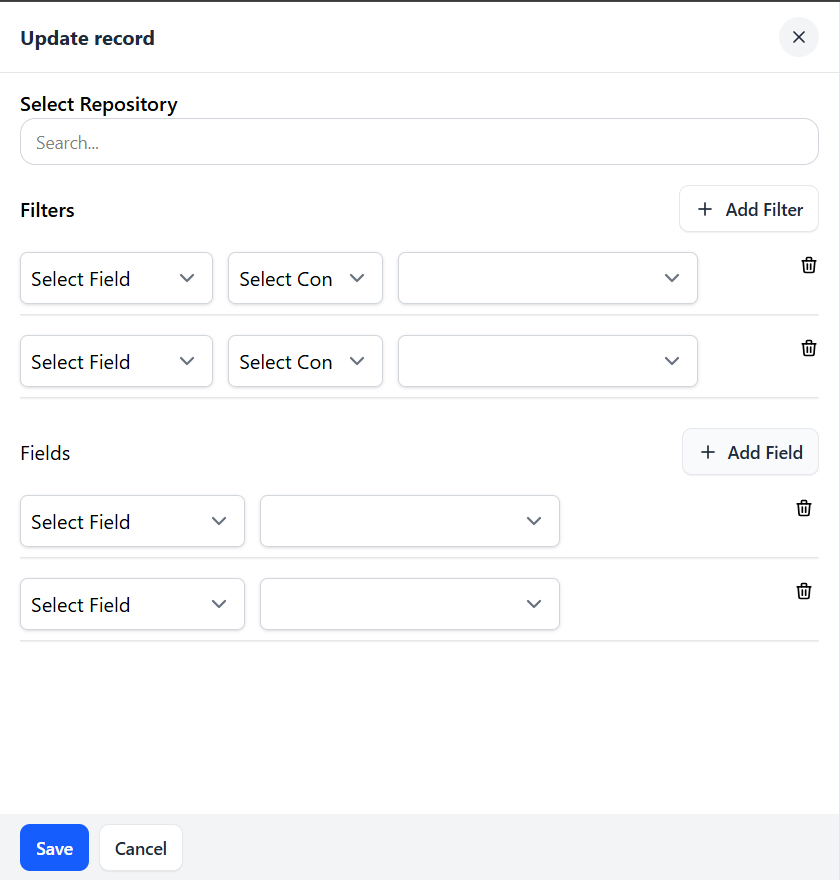
Update Record Stage
The Update Record stage allows you to update an existing record in a selected repository by mapping fields with new values using Custom, Calculated, Variable, or For Each Repository inputs, depending on context and field type.

Update Record Stage
Interface Overview
1. Select Repository
Choose the repository that contains the record you want to update.
2. Identify Record (Filter)
Select the method to identify which record(s) to update.
Usually done by matching a unique field (e.g., ID, Email, etc.) using a variable or item reference.
2. Fields Mapping
Each updatable field in the repository can be mapped using dropdowns:
Select Field
Choose the field in the repository you want to update
Select Value
Choose how the field will be updated: custom, Calculated, or Variable.
Field Behaviour by Type
A. Field Types Supporting Custom, For Each & Variable Value
Single Line
Multi Line
Email
Checkbox
Lookup
Multiselect
Select
Attachment
User or Group
Hyperlink
Location
When selected:
Custom → Shows a simple text field to manually input a value (e.g., Name>>Custom>>"Raaghav").
Variable
An additional text field is shown to specify the variable as “${Variable:VariableName}”
If the variable is of type record or records, use the format ${Variable:VariableName:FieldName} to access a specific field.
For Each Repository → Select from current iteration item fields
B. Field Types Supporting Custom, Calculated, For Each and Variable Value
Decimal
Number
Date
When selected:
Custom → Displays a text input (e.g., enter 200.5 for a decimal).
Calculated → Displays a multi-line expression editor for formulas or expressions (e.g., {{Total}} * 0.18).
Variable
An additional text field is shown to specify the variable as “${Variable:VariableName}”
If the variable is of type record or records, use the format ${Variable:VariableName:FieldName} to access a specific field.
For Each Repository→ Select fields from current item
Example
Goal: Update candidate record with interview result
Status
Custom
Displays a DD field. Select: "Completed"
Interview Score
Variable
Displays a Dropdown with all available variables.
Interview Date
Custom
Select Date
Date of Joining
Calculated
{TargetRepository:InterviewDate}<PLUS>30
Best Practices
Use Custom for fixed text/numeric input.
Use Variable for dynamic inputs from earlier stages.
Use Calculated for formulas involving variables or expressions.
Update Record Stage Under For Each
Used to update records dynamically inside a loop based on conditions.
For Each Stage – Configuration
Select Repository: Repository to iterate (e.g., Candidate Interviews)
Condition (Optional): Apply filters, e.g., Status == "Completed”
Update Record Configuration (Inside For Each)
Select Repository
Choose the repository to update (e.g., Candidate)
Identify Record
Match Record via unique field (e.g., Email or ID from current item)
Field Mapping
Define field updates using Custom, Variable, Calculated, For Each
Example:
You want to update existing records in the Candidate repository for each item in the Candidate Interviews repository — but only for interviews that have been completed.
Let’s say your system tracks candidates and their interviews in two separate repositories:
Candidate Interviews (used to store details of individual interview rounds)
Candidate (master record for each candidate)
After interviews are conducted, you want to loop through the Candidate Interviews repository and:
Identify completed interviews.
Update the corresponding candidate’s record with the latest interview score, comment, and status.
Interview Status
Custom
“Completed”
Interview Score
For Each Repository
Score
Candidate
Variable
${Variable:CandidateName}
Updated On
Calculated
<TODAY><PLUS>0
Update Record Stage Under Condition
Use this to update a record only if specific criteria are met.
Condition Stage – Overview
Evaluates a boolean condition using workflow variables.
If true, runs the nested Update Record stage.
If false, skips the update.
Update Record Stage – Inside Condition:
This stage is used to update existing record only when the condition evaluates to true.
1. Select Repository:
Choose the repository where the existing record should be updated.
Example: Offer Letters
2. Field Mapping:
Text, Email, Select, Checkbox, Lookup, Location, User or group, Hyperlink, Attachment, etc.
Custom, Variable
Custom: Text field
Variable: Dropdown of available variables
Decimal, Number, Date
Custom, Calculated, Variable
Custom: Text/Date input
Calculated: Multiline expression editor
Variable: Variable dropdown
Example Scenario
Goal: If candidate score ≥ 7, update status to “Selected” and set joining date.
Condition Configuration
Variable: Total Score
Condition: Greater Than or Equal To
Value: 7
Update Record Configuration (inside true path)
Candidate Name
Variable
${Variable:Candidate_Name}
Variable
${Variable:Candidate_Email}
Offer Status
Custom
"Selected"
Joining Date
Calculated
<TODAY><PLUS>30
Last updated