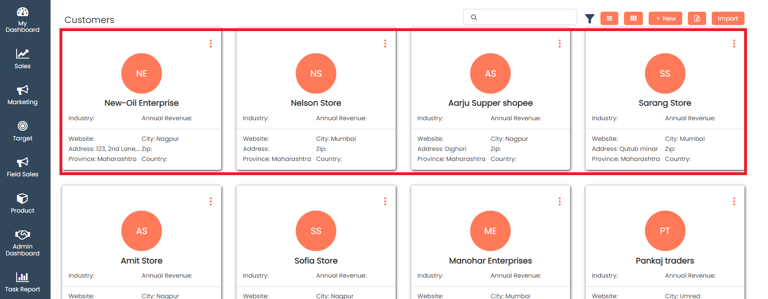
# Customer

### Add Customer <a href="#add-customer" id="add-customer"></a>

In Field sales, you can add customers in 2 ways

1. Add customer individually
2. Import customers

### Add customer individually <a href="#add-customer-individually" id="add-customer-individually"></a>

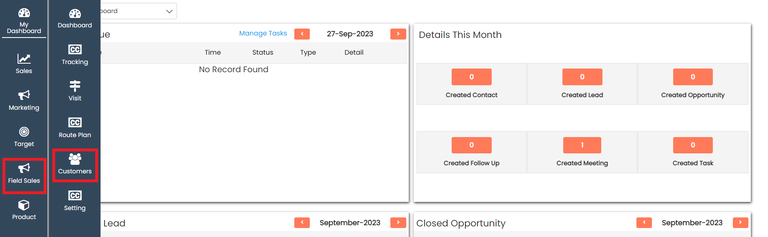
In **CRM**, select **Field Sales**, and click on **Customers**

<figure><img src="/files/vNWLEqe69Pee9oHDpNHg" alt=""><figcaption></figcaption></figure>

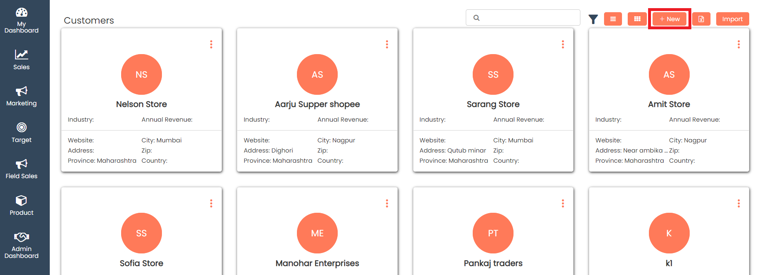
In the customer page, click on the **+New** button to add a **New Customer**

<figure><img src="/files/dQuokJihDDKRmzueYlqS" alt=""><figcaption></figcaption></figure>

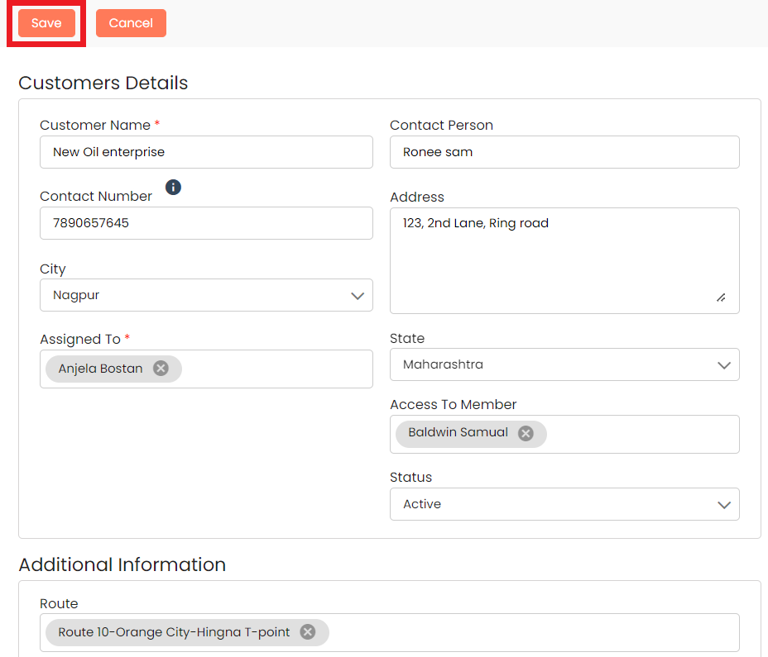
Add all the details and click on **Save**

<figure><img src="/files/hSMOgKVRqbx43mmTCB4E" alt=""><figcaption></figcaption></figure>

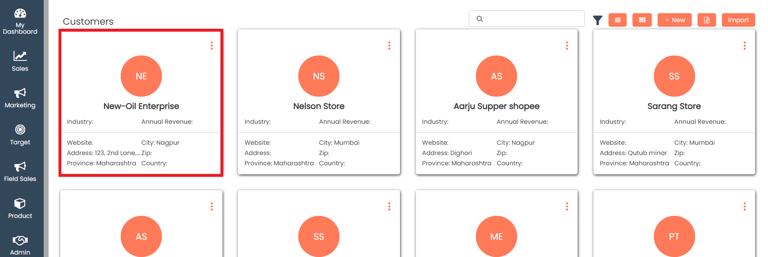
The newly added **Customer** will be in the first position in the list

<figure><img src="/files/Ms3hbfmFJbt2HPg8Gvl4" alt=""><figcaption></figcaption></figure>

### Import customers <a href="#import-customers" id="import-customers"></a>

When you have a huge list of contacts in a spreadsheet and you would like to add them as **Customers** in your system, you can import the file and they will be added as Customers.

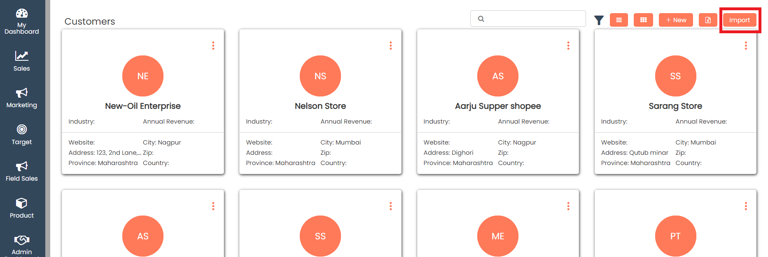
On the **Customer** page, click on the **Import** button

<figure><img src="/files/J4IkguyXrTSq5EEnFhyI" alt=""><figcaption></figcaption></figure>

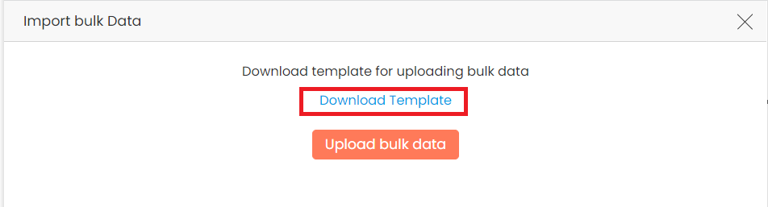
You can **Download** the **Template** in xlsx format

<figure><img src="/files/uNEOXB2xCoRpxMSrA0AP" alt=""><figcaption></figcaption></figure>

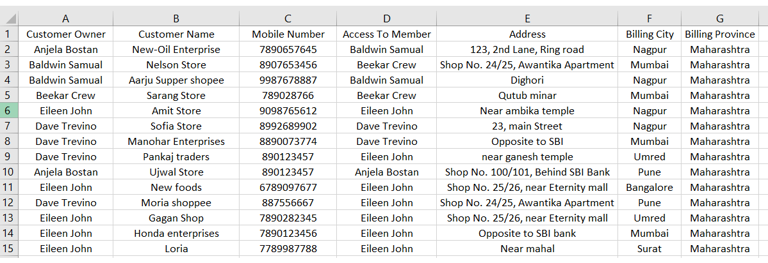
Make Sure you fill up all **Required fields** while importing data

<figure><img src="/files/dzcYYNFkRxpKRc7E6D1A" alt=""><figcaption></figcaption></figure>

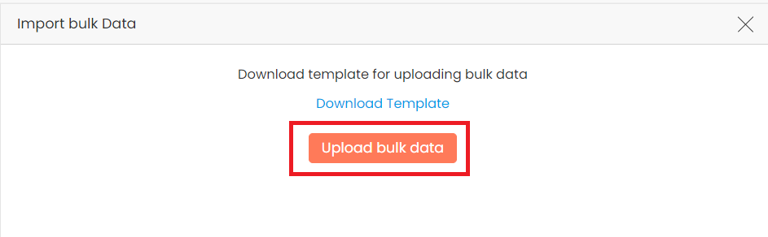
Click on **Upload bulk data** to upload your customer list

<figure><img src="/files/FLMpVQ6JtDmw3ypgKpOK" alt=""><figcaption></figcaption></figure>

After uploading Customers in xlsx file format, you can see imported customers in the customer list

<figure><img src="/files/VwwKZtFAOJKKtLc6LQQh" alt=""><figcaption></figcaption></figure>

Last updated 10 months ago


---

# Agent Instructions: Querying This Documentation

If you need additional information that is not directly available in this page, you can query the documentation dynamically by asking a question.

Perform an HTTP GET request on the current page URL with the `ask` query parameter:

```
GET https://docs.aiflo.app/field-sales/customer.md?ask=<question>
```

The question should be specific, self-contained, and written in natural language.
The response will contain a direct answer to the question and relevant excerpts and sources from the documentation.

Use this mechanism when the answer is not explicitly present in the current page, you need clarification or additional context, or you want to retrieve related documentation sections.