# Product Price

### Add Product Price <a href="#add-product-price" id="add-product-price"></a>

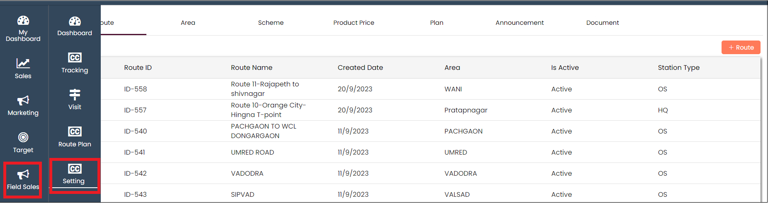
In **CRM**, Select **Field Sales** and click on **Setting**

<figure><img src="/files/ObvV1CdkMnJjasmyBhn9" alt=""><figcaption></figcaption></figure>

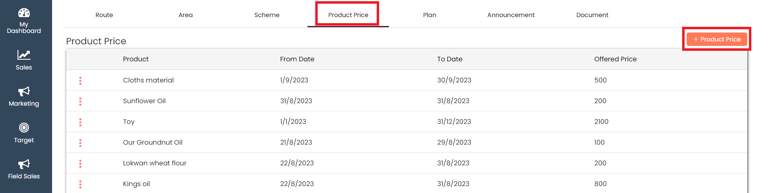
In the setting, select the **Product Price** and click on **+Products Price** to add a new price for a site visit

<figure><img src="/files/wTFfYwK9cS8RgsEKBTSW" alt=""><figcaption></figcaption></figure>

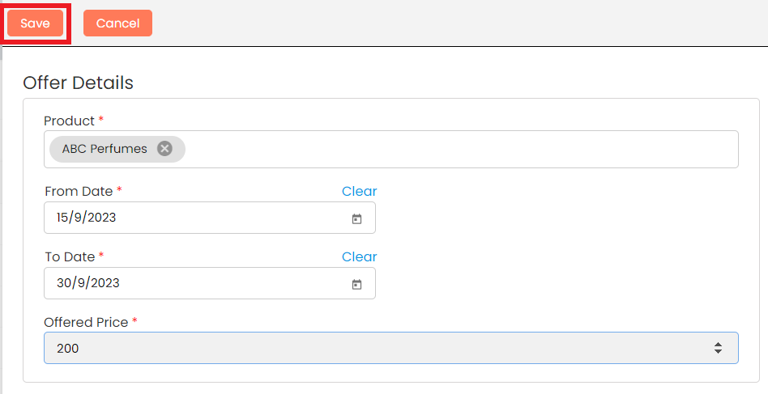
Add all the details and **Save**

<figure><img src="/files/JLCTkXJ6dCAmrhidRJXh" alt=""><figcaption></figcaption></figure>

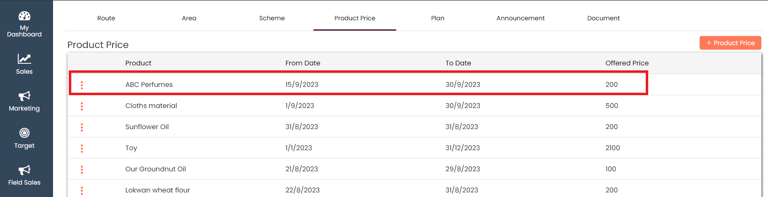
A new **Offer price** will be added at the top

<figure><img src="/files/XtUIPaFWsXCH6gRpxRWC" alt=""><figcaption></figcaption></figure>

### View Product Price <a href="#view-product-price" id="view-product-price"></a>

You can choose to view the Product price that you have added

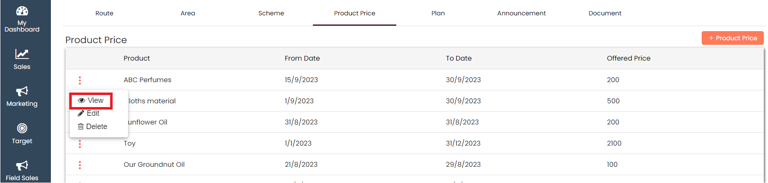
In the **product price,** click on the Actions (3 vertical dots) and select the **View** button

<figure><img src="/files/AL16JXZpdot6w4O2oml9" alt=""><figcaption></figcaption></figure>

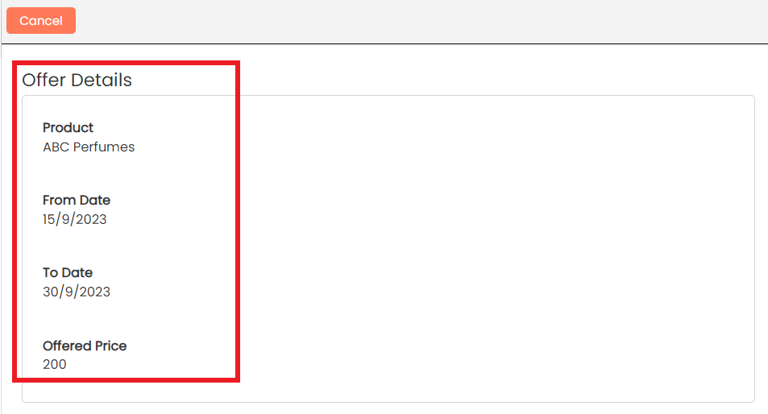
You can view all the details of the added product price

<figure><img src="/files/VZhjwlfwYdHOoaxtwYaS" alt=""><figcaption></figcaption></figure>

### Edit Product Price <a href="#edit-product-price" id="edit-product-price"></a>

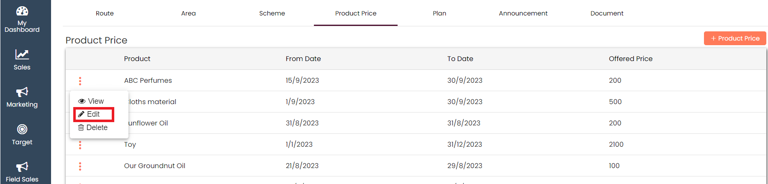
In the **Product Price,** click on the Actions (3 vertical dots) and select the **Edit** button

<figure><img src="/files/KTd3fKxJPqfYpOZcG19W" alt=""><figcaption></figcaption></figure>

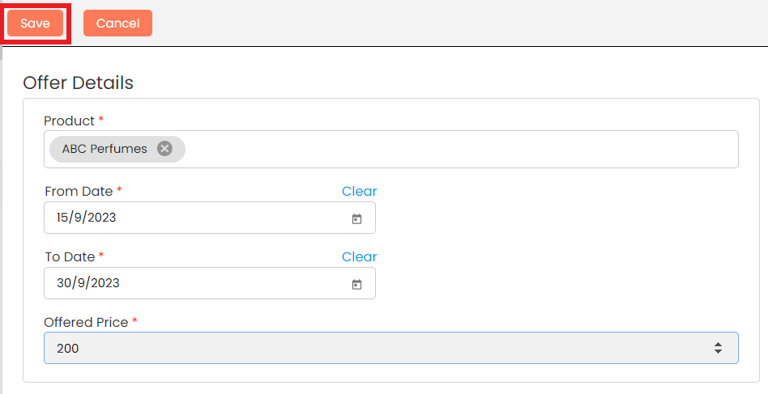
Edit the route details and **Save**

<figure><img src="/files/a9avcBRBFHQN1Ds2nAaf" alt=""><figcaption></figcaption></figure>

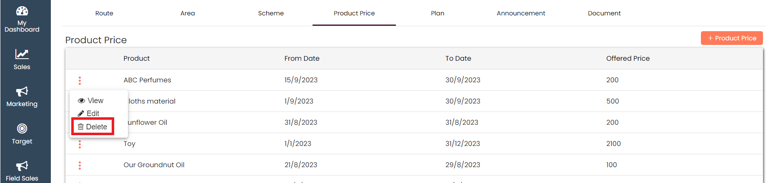
### Delete Product Price <a href="#delete-product-price" id="delete-product-price"></a>

In the **Product Price,** click on the Actions (3 vertical dots) and select the **Delete** button

<figure><img src="/files/J5pZESUVBNAjZAeu3pcb" alt=""><figcaption></figcaption></figure>

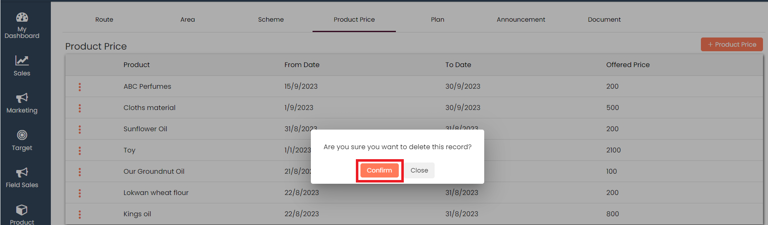
Give your confirmation in the **popup** and the Product Price will be deleted

<figure><img src="/files/eKQ8U5XJyz36IVubhjEx" alt=""><figcaption></figcaption></figure>

Last updated 10 months ago


---

# Agent Instructions: Querying This Documentation

If you need additional information that is not directly available in this page, you can query the documentation dynamically by asking a question.

Perform an HTTP GET request on the current page URL with the `ask` query parameter:

```
GET https://docs.aiflo.app/field-sales/product-price.md?ask=<question>
```

The question should be specific, self-contained, and written in natural language.
The response will contain a direct answer to the question and relevant excerpts and sources from the documentation.

Use this mechanism when the answer is not explicitly present in the current page, you need clarification or additional context, or you want to retrieve related documentation sections.